
WINDOWS & ANDROID
Download. Install. Start creating.
Get THE ULTRA VEO3 for your device, follow the setup guide, and sign in with your issued app credentials.
- No login needed to download
- Step-by-step guide included
Official app downloads
Choose your device
Download the latest release directly in your browser. No website login required.
Video guide
Setup video
Follow the guide for installation and your first sign-in.
Setup video coming soon
Ultra Veo3 install + first login walkthrough will appear here. Until then, use Installation and Sign-in help below.
Open installation guide →Quick help
Unusual activity or high demand?
Unusual activity: VPN → Mexico → Refresh. High demand: VPN → United States → Refresh. If needed, use Clear Cache in the app.
Watch sign-in help →Windows · VPN support
Urban VPN issues?
Close VPN, switch Flow/Gemini, then reopen VPN. If it still fails, Clear Cache and re-login. Share the error with support if it persists — no new EXE required for VPN tweaks.
View troubleshooting →Installation
How to install
Windows: open the downloaded EXE and finish the installer. If SmartScreen appears, use the guide below only for the official file.
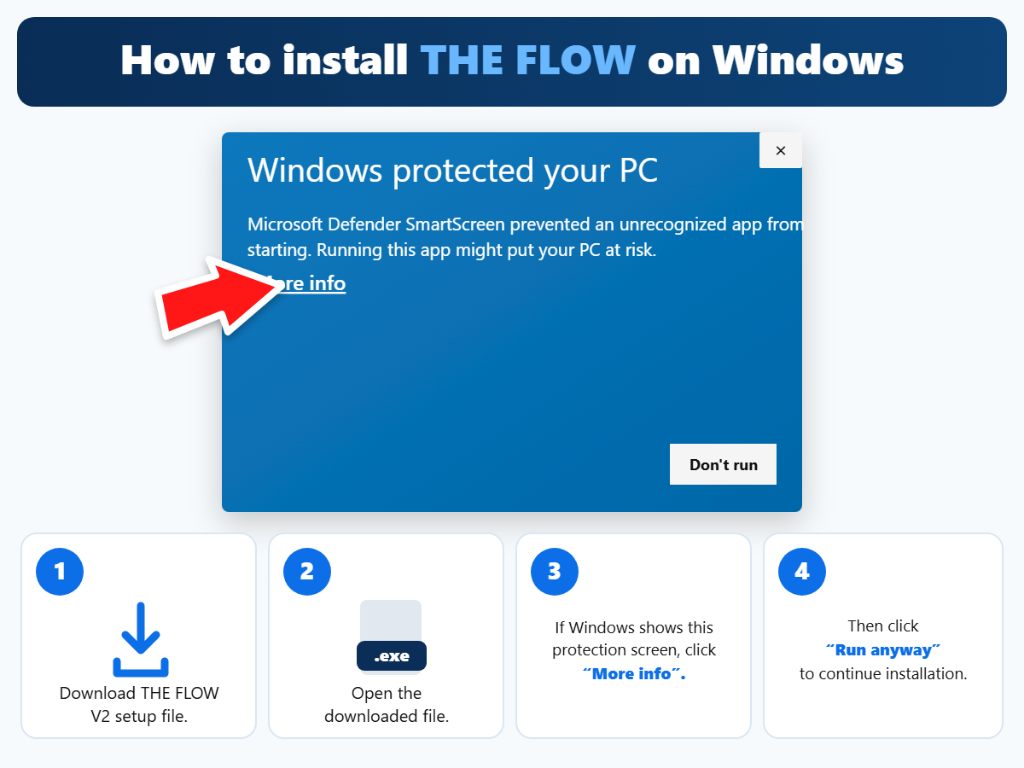
- 1Download Windows AppUse the Windows EXE download above.
- 2Extract & open the EXEWindows may show SmartScreen protection.
- 3Click “More info”The image highlights the exact option.
- 4Click “Run anyway”Continue the installer and launch THE ULTRA VEO3.
Google sign-in help
When 2-Step Verification appears
Choose your authenticator when Google asks you to verify your sign-in.
- 1Try another wayOn the verification screen, click Try another way.
- 2Select AuthenticatorChoose Get a verification code from the Google Authenticator app.
- 3Enter the current codeUse the 6-digit code, then click Next.
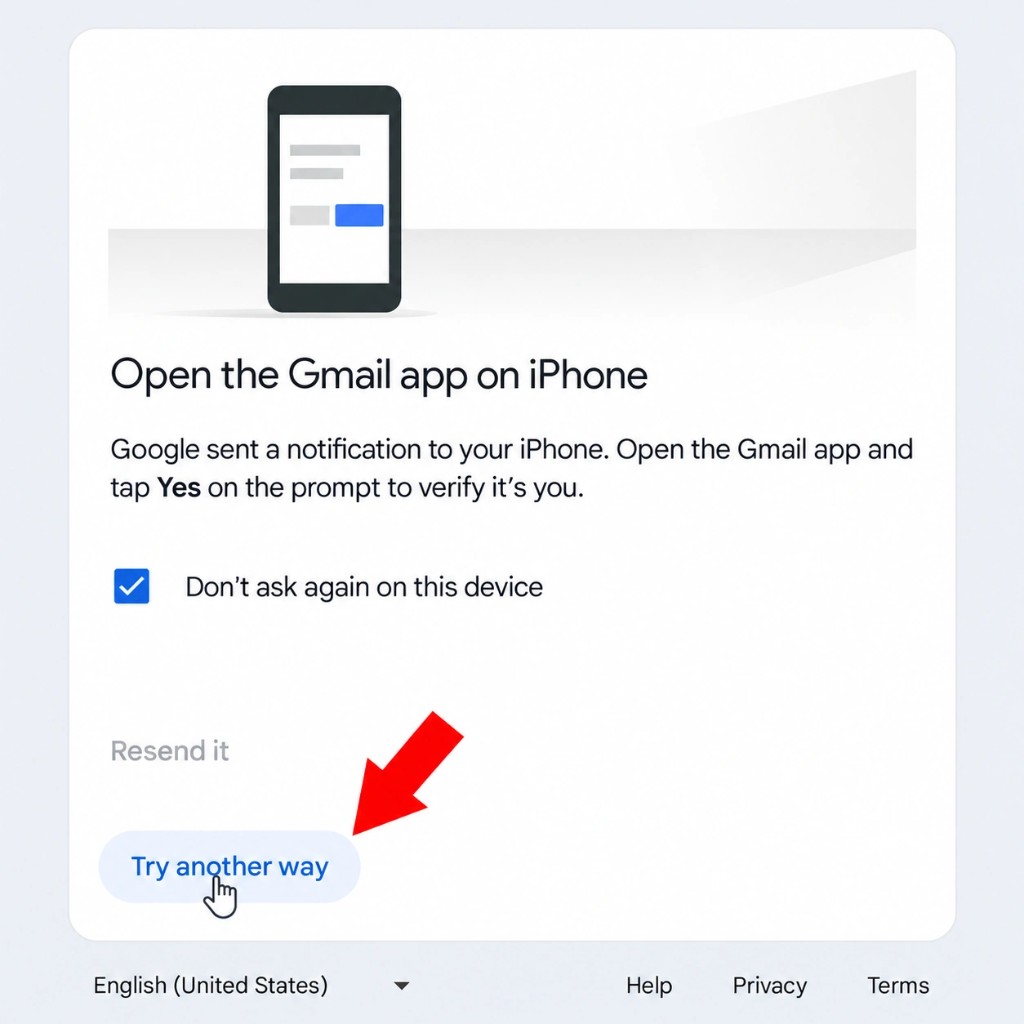
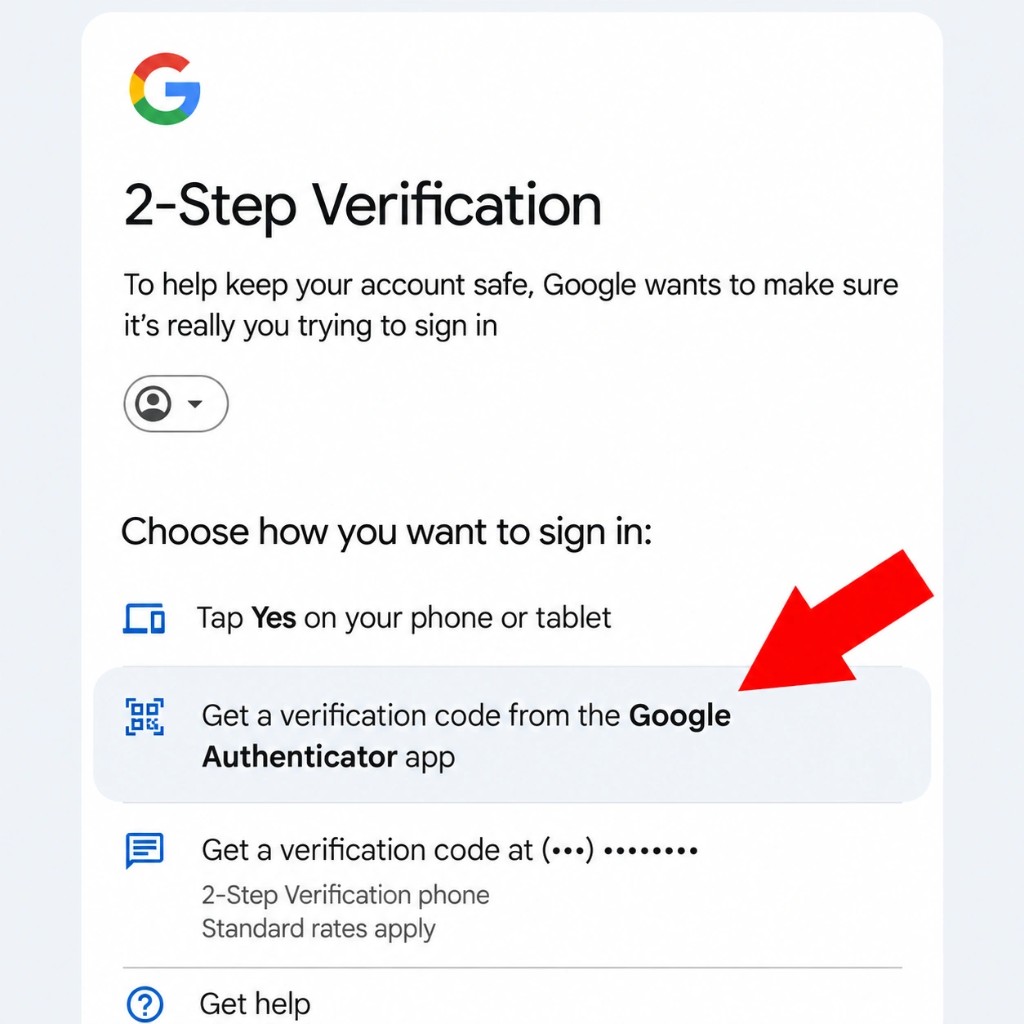
Google’s layout can vary by account — look for Authenticator / Get a verification code.
Quick tip: Unusual activity → VPN Mexico → Refresh. High demand → VPN United States → Refresh. Or use Clear Cache in the app.
About the app
Flow & Gemini in one place.
Access your creative workspace inside THE ULTRA VEO3 on Windows or Android.
Your creative tools
Open Flow or Gemini from the app and continue working on your ideas.
Your app access
Sign in inside THE ULTRA VEO3 with credentials from your seller. Keep your password private.
Quick answers
Need a little help?
Download, installation, and account essentials.
Do I need to log in to download?
No. Download directly from this page, then use your issued credentials inside THE ULTRA VEO3.
Where is my downloaded file?
Check your browser Downloads folder for the .exe (Windows) or .apk (Android).
Why does Windows say “protected your PC”?
SmartScreen blocks newly published apps. Choose More info → Run anyway only for the official Ultra Veo3 installer.
How do I fix Urban VPN issues?
Close VPN, switch tabs, reopen VPN. Or Clear Cache and re-login. Contact support with the error if it continues.
Can I install it on iPhone or Mac?
This page currently offers Windows and Android builds only.
What if Authenticator is not listed?
Tap Try another way on Google’s screen. If it still is not there, contact your seller.